Tampilkan postingan dengan label Office. Tampilkan semua postingan

Turn on the Developer tab in MS Office applications

Posted by Unknown Kamis, 22 Agustus 2013 0 komentar
Word, Excel, Powerpoint, Outlook, etc, have some additional features available on the Developer tab (ribbon bar). This tab is not turned on by default. Follow these steps to turn it on:

Click File | Options 
Click Customize Ribbon

Word 2010 Developer tab

On the right look through the list of Main Tabs and click to enable Developer (as shown above).
Click OK

If you are using Word you'll see the following:


It's similar for Outlook, Excel, PowerPoint and other MS Office applications.


NOTE: This applies to MS Office 2010 and 2013.


Baca Selengkapnya ....

Excel 2010 - Compare two worksheets using Spreadsheet Compare

Posted by Unknown Jumat, 05 Juli 2013 0 komentar

Introduction
I had two Excel files and I wanted to compare them to see the differences. Excel 2010 doesn't have a way to do this included. I had a look on the web and found a free add-in for Excel called Spreadsheet Compare.


Download and Install
You can download it here: http://sourceforge.net/projects/spreadshcompare/
Once it has downloaded open the EXE and follow the prompts to install.
After installation, when you start Excel the next time, click the Add-ins tab. You'll have a Compare button.


Using Spreadsheet Compare
Let's suppose you have two Excel files like this:


Make backup copies of the two worksheets you want to compare. This is important because Spreadsheet Compare will alter the worksheets you compare.

In Excel open the two worksheets you want to compare.

Click the Add-ins tab, click Compare.


Select the two worksheets - as you can see in my example above, my files are called Sheet1 and Sheet2.

Click Compare


When it's finished click OK


As you can see in the above, my Sheet1 and Sheet2 have highlights indicating the differences between the two files. The third worksheet explains in more detail. 


Conclusion
This add-in works! It does a good job and it's free, what more could you want? 


Baca Selengkapnya ....

Word 2010 - Reveal Formatting

Posted by Unknown Rabu, 15 Mei 2013 0 komentar
Introduction
Sometimes working with a document in Word can be a real pain! Things happen and you just don't understand why. Well of course usually this is because of a style or some other formatting that's crept into your document. The worse situation is when you need to edit a document someone else has created, all manner of odd things can occur.


Solution
Word has a great feature called Reveal Formatting. Here's how to switch it on:

  1. Select a word in your document
  2. Press Shift-F1

Yes it is that easy!

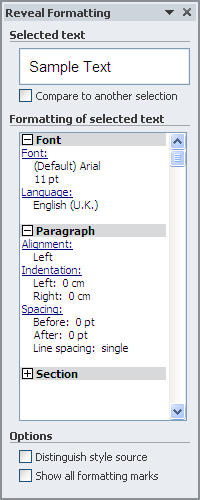
As you can see in the screen shot opposite, the font and other properties of your text is displayed. This can be invaluable in understanding your document.


Also
Instead of press Shift-F1 you can also open the Reveal Formatting window by clicking the following boxes as shown in this diagram:

It's interesting to open it this way because along the way you can see the other tools available to help you work with styles and formatting. the Style Inspector for example, it's very useful when you want to check styles and what additional formatting has been added.


Show/Hide Formatting Marks 
This is also very important:


Click

In your document you'll see spaces, tabs, paragraph marks, etc. This helps you see double spacing or where tabs are missing and more.


Conclusion
Don't forget Shift-F1!

Baca Selengkapnya ....

Word 2010 printing is very slow

Posted by Unknown Senin, 18 Maret 2013 0 komentar
When printing from Word 2010 I found that it would say "connecting to printer" for ages... I was only printing one page of text!

Solution 1 (maybe)
On one website it said to turn off the background printing, I tried this but it didn't help me. Maybe it'll work for you, here's what to do:
Click File | Options | Advanced
Scroll down to the Print section
Turn off Print in Background (see the screen shot opposite)
Click OK


Solution 2
I downloaded the latest driver for my printer and installed it. I restarted my computer and now Word is printing normally again. Sometimes the simplest solutions are the best!


Baca Selengkapnya ....

How MS Office Word doc / excel / ppt edition on Kindle Fire HD / 2 free

Posted by Unknown Jumat, 15 Maret 2013 0 komentar

ad

Kindle Fire HD comes pre-loaded with Office Suite app. You can use Word documents, spreadsheets, power point presentations with the Office application. You can not doc or docx files. OfficeSuite Pro is edited possibilities, but costs about $ 15.

Editing or see doc / xls / ppt for free in HD Kindle Fire / 2
1. Download and install Kingsoft Office app on your Kindle Fire HD from Amazon AppStore

2. You may DOC / DOCX, XLX / xlsx, ppt / pptx files with. You can find documents on your Kindle Fire HD.

Kingsoft Office has integration with Dropbox, Google Drive (Google Docs), Box.NET. You can upload and edit files stored in cloud services. You can also use FTP your documents. You can send your edited documents directly from Office applications: Kingsoft.

I could another free application was not found for editing documents or Excel files on Amazon AppStore. There are some Android apps like Office Suite Professional 6 , Documents To Go Full Version Key , but they cost about $ 15 dollars

Also, how to use iTunes playlists import Kindle Fire HD / 2

View the original article


Baca Selengkapnya ....

Excel 2010 - Format as Table is greyed out

Posted by Unknown Senin, 21 Januari 2013 0 komentar
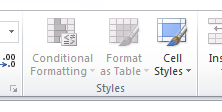
Today I was sent by e-mail an XLS file but that when I opened it the Conditional Formatting and Format as Table buttons were greyed out. I wanted to use Format as Table so I could more easily

Make sure you save the file as a real Excel 2010 xlsx. But in my case I found my file was 'Shared' and removing the 'Shared' status solved it for me. Here are the two solutions in more detail:


Convert to xlsx
On the top of the Excel window, to the right of the filename, if it says [Compatibility Mode] do the following:
Click File | Info | Convert
Save the file as xlsx (native Excel 2010 format)


Turn off Shared
On the top of the Excel window, to the right of the filename, if it says [Shared] do the following:

Click Review | Share Workbook

Disable (click to remove the tick) 'Allow changes by more than one user at the same time. This also allows workbook merging.'

Click OK


Click Yes


Click Home and you'll see the buttons are now active!


NOTE: You have to make a choice! If you received the file via e-mail then it should not matter that you have turned off Sharing. But if you opened the file from a shared network drive then you will stop it from being shared - other users will not be able to access this file until you've finished with it.


Baca Selengkapnya ....

Word 2010 - can't get rid of grey square brackets?

Posted by Unknown Kamis, 01 November 2012 0 komentar
Word screen shot with grey square bracketsDo you have a Word document that has grey square brackets [ ] in it that you can't delete no matter what you do? See the word "engraved" in the example opposite.

Those grey square brackets [ ] are bookmarks. Possibly they were created automatically when you copy/pasted from another application? Or maybe you added bookmarks yourself but are wondering why the  grey brackets are there?

Assuming you'd rather not see the grey square brackets, there are two possible solutions, either delete or hide the bookmarks:


Review/Delete Bookmarks
To review and/or delete bookmarks, in Word 2010 click Insert | Bookmarks. A list of bookmarks will appear, select one and click Delete to remove it.


Show/Hide Bookmarks
To show/hide bookmarks, click File | Options | Advanced | Show bookmarks - as shown below:

Word screen shot with Show bookmarks highlighted

Baca Selengkapnya ....

Excel 2010 - Data source reference is not valid

Posted by Unknown Selasa, 28 Februari 2012 0 komentar
Problem
In Excel 2010, when you try to create a pivot table it give the following error message:
Data source reference is not vaild

Solution
Often this happens because you opened a CSV or other data file directly from another program.

Make sure you save your data file first, before you attempt to create a pivot table. It will work if it is a saved csv, xls, xlsx, etc.

Baca Selengkapnya ....
Trik SEO Terbaru support Online Shop Baju Wanita - Original design by Bamz | Copyright of apk zippy.